ToneCue app icon

Your Mac, with the microphone you meant.

ToneCue lives in the menu bar and picks your microphone and speakers by situation: a dock, a calendar meeting, an open app. It tells you why it switched, and you can undo it.

14 days free, then €9.99 once. No account. macOS 13 or later.

Watch ToneCue at work

A short demo, from switching by hand to scenes that switch for you.

macOS picks whatever connected last

That works until your day has more than one setup.

You connect a headset
macOS can move your input to the headset's microphone. Your voice drops to phone quality, and you open Settings to fix it.
You dock the laptop
Sound stays on the laptop speakers, or lands on the monitor, depending on what connected last.
A call starts
Zoom or Teams picks a device. You check the picker before every call, and again after the next reconnect.

A priority list fixes the order. It does not know what you are doing. ToneCue picks the devices for the situation you are in.

Example of the headset problem: Apple Community thread, December 2024.

Scenes: rules for your audio devices

A scene is a name, a few triggers and two ordered lists of devices, one for input and one for output.

The headset case. You connect AirPods and macOS flips your input to their microphone. ToneCue puts the scene's input back. No script, no delay hack.

The topmost scene wins

Order your scenes. The first one with an active trigger decides the devices. A default scene covers everything else, so a plain "best connected device wins" list works from day one.

Five kinds of trigger

A device connects, a calendar meeting runs (optionally only with a meeting link, with a few minutes of lead), an app is open or in front, a microphone is in use, or the clock is in a time window on chosen weekdays.

Bluetooth guard

When macOS flips the input to a headset that just connected, ToneCue switches it back. It works per scene, and you can turn it off.

It says why

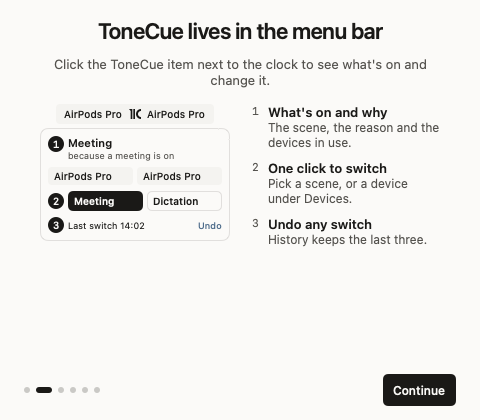
The popover names the active scene and gives the reason in one sentence. A history of recent switches has an Undo for each.

Your pick wins

Choose a device by hand and automation pauses until the scene changes or you press Resume. ToneCue switches at most once per second, so it never fights you mid-call.

Mute from anywhere

A global shortcut mutes the microphone and follows the input device. Links like tonecue://scene/Meeting work from Shortcuts and scripts. There is no link that unmutes, on purpose.

Watch it decide

Pick a moment from your day. This is an illustration of the popover, not a recording.

ToneCue Illustration
InputElgato Wave XLR
OutputLG HDR WQHD
DeskLG HDR WQHD is connected
Undo
ToneCue Illustration
InputAirPods Pro
OutputAirPods Pro
CallsA meeting is on
Undo
  1. 1
    You connect AirPods.Your scene says: use the Elgato Wave XLR to talk.
  2. 2
    macOS moves your input to their microphone.Your voice would now sound like a phone call.
  3. 3
    ToneCue puts the input back.Elgato Wave XLR again. The headset keeps playing sound.

See what is on, and why

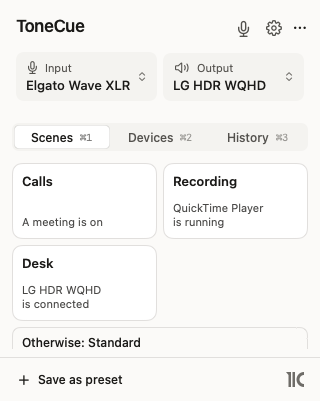
Click the ToneCue item next to the clock. The popover shows the active scene, the reason and the devices in use. One click switches a scene or a device.

ToneCue's menu bar popover: input and output tiles, three scene cards (Calls, Recording, Desk) and a default scene.
The popover
Scenes

Meeting starts, the right mic stays on.

Each scene card says what triggers it. When a calendar meeting begins, the Calls scene takes over and uses your headset. When it ends, the Desk scene returns to the monitor and the studio microphone.

Editor

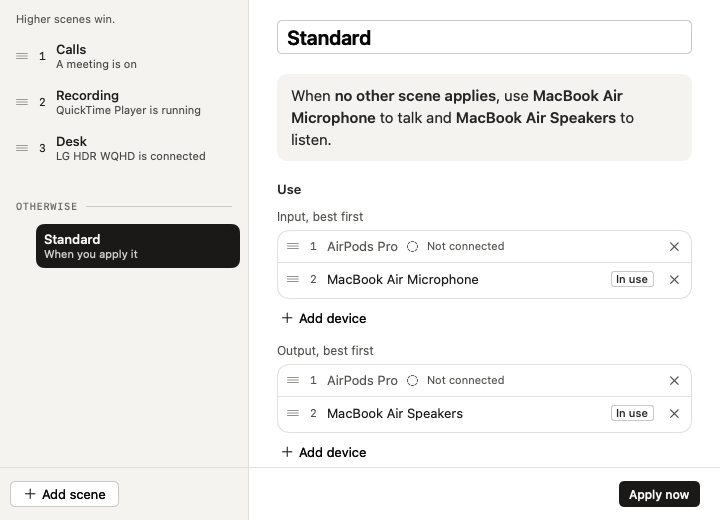
Best device first.

Each scene keeps two ordered lists. ToneCue uses the first device in each list that is connected, so a missing headset falls through to the next choice instead of to silence.

ToneCue's scene editor: a list of scenes on the left, the default scene's ordered input and output lists on the right.
The scene editor

Set up in a minute

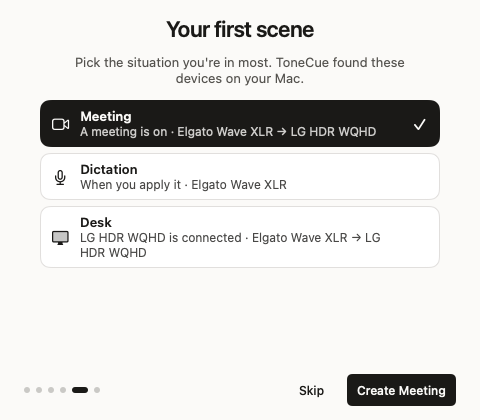
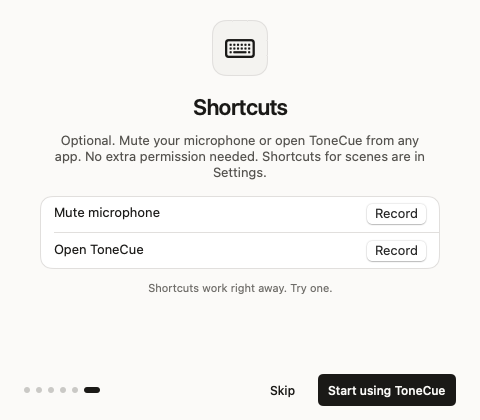
The first run builds a scene from the devices on your Mac. Calendar access and shortcuts are optional.

  • Pick a starting sceneMeeting, Dictation or Desk, filled with the devices ToneCue found.
  • Skip what you do not needCalendar access and shortcuts can wait until you want them.

How ToneCue compares

Most tools rank your devices or mix their sound. ToneCue decides by situation, and says why.

Feature ToneCue Free priority listsAudio Priority Bar, SoundAnchor Recadio SoundSource
Switches devices automaticallyYesBy rankingPaid tierNot listed
Reacts to a calendar meeting, an app, a mic in use or the time of dayYesNot listedNot listedNot listed
Gives a reason for every switchOne sentenceA notice, at bestNot listedNot listed
Undo for each switchYesNot listedNot listedNot listed
Keeps a headset from taking over the microphonePer sceneBy rankingYesNot listed
Per-app volume, effects and sample rateNot listedNot listedNot listedYes
Price€9.99 onceFreeAbout $10 onceOne-time license
Minimum macOS1314 (Audio Priority Bar)Not listed15

A dash means the feature is not listed on the product’s page. Based on each product’s own page in October 2026, not on our tests; features and prices change. Sources: Audio Priority Bar, Recadio, SoundSource, SoundAnchor.

Where others winAudio Priority Bar is free and open source. If one fixed ranking is all you need, start there.
A different jobSoundSource mixes per-app volume, effects and sample rate. ToneCue only decides which devices to use.
Where ToneCue winsMeetings, apps, the clock and a mic in use can all choose your devices, and every switch comes with a reason and an Undo.

Small footprint, nothing to sign up for

ToneCue changes which devices macOS uses. It does not record or process your sound.

No account

Install it and use it. The 14-day trial runs on your Mac.

Few permissions

Audio control needs none. Calendar access is asked for only when you use a meeting trigger.

Quiet network

A license check and an update check, and a diagnostic report only if you send one. No analytics, no tracking.

Pricing

Try it for two weeks. Pay once if it earns its place in your menu bar.

Trial
Free for 14 days

Everything unlocked. No account, no card.

Download the trial
License
€9.99 once

No subscription. One license covers three of your Macs. Launch offer: 50% off for the first 100 buyers across all three apps.

Buy a license

Built and maintained in Austria. Questions before buying? Write to hello@didact.digital.

Questions

The ones that come up.

Does it fight me when I pick a device myself?
No. When you choose a device by hand, automation pauses until the scene changes or you press Resume. ToneCue's own switches are never mistaken for yours, and it switches at most once per second.
Which permissions does it ask for?
Switching devices needs none. Calendar access is requested only if you add a meeting trigger, and ToneCue reads event times and whether an event has a meeting link. The shortcut that opens the popover asks for one permission the first time you use it. The mute shortcut needs nothing extra.
What does it send over the network?
A license check and an update check. If you choose to, you can also send a diagnostic report from the app. There is no account, no analytics and no tracking.
macOS has a sound menu. Why not Option-click?
Option-click switches once. It does not repeat when your headset reconnects, when a meeting starts or when you plug in the dock. ToneCue does that part for you and lists what it did.
There are free apps that rank devices. What is different?
A ranked list knows which device you own. A scene knows what you are doing: a calendar meeting, an open app, a microphone in use, a time window. If one fixed order works for you, a free list is enough. If the right answer changes with the meeting, the dock or the hour, scenes fit better.
What happens after the 14-day trial?
You need a license to keep using ToneCue. One license is €9.99 once, no subscription, and covers three of your Macs.
Is this the old AudioPilot?
Yes. ToneCue 2 continues AudioPilot 1.x under a new name and reads its settings. AudioPilot 1.0 to 1.3 were open source; ToneCue is proprietary.
Which Macs does it run on?
macOS 13 Ventura or later, on Apple silicon and Intel. It is signed and notarized by Apple.
What about refunds?
There is no refund promise, because the 14-day trial has every feature switched on. Use it properly before you pay. If something is genuinely broken or went wrong at checkout, write to hello@didact.digital and I will look at it.
How do I get support?
I read hello@didact.digital myself and answer within two working days (Mon to Fri, Austria time). If I am slower, I will say so in my first reply. Lost your license key? It is in your receipt email. If that is gone too, write from the address you bought with. New Mac? Choose “Deactivate this Mac” in Settings first, then activate the key on the new one. If a slot is stuck, write to me and I will free it. Something is broken? Tell me what happened and which macOS version you are on. I cannot promise a fix date, but I do promise an answer.